
Why does my computer get slower after a year? A diagnosis routine that works
By Validure team · · 10 min read
A practical diagnosis for the machine that was fine in January and now takes four minutes to open the invoicing app: the layers to check in order, worked examples with measured times, and the two upgrades that pay for themselves.
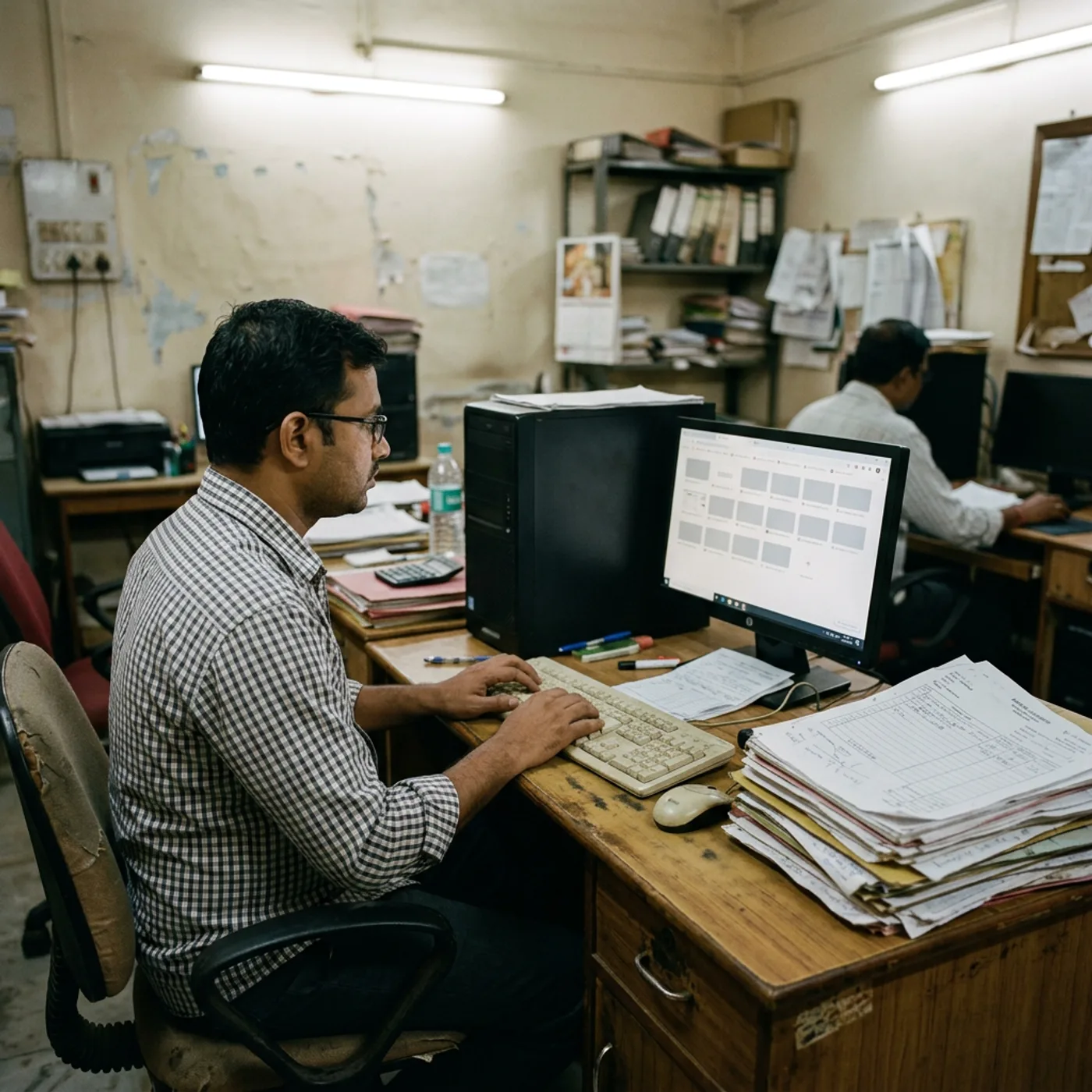
The invoicing machine at a 14-person trading firm was fine in January. By November, the accounts team opens the same invoice screen and waits forty seconds, and the owner has been told, by three different IT guys, that it "needs a format". It does not need a format. It needs a diagnosis, and a diagnosis is a sequence of checks with numbers, which is what this post gives you.
The word "slow" hides five different problems, and each has a different fix: a worn drive, a machine that starts too many things, a browser or app that has quietly eaten memory, a system running behind on updates and scans, or a workload that outgrew the hardware. Guessing which one is the expensive mistake, because the fixes range from free to buying hardware nobody needed.
Start by describing the slowness concretely
Before opening anything, write down three facts, because they split the diagnosis in half.
| What you actually observe | It points at | The first place to check |
|---|---|---|
| Only slow on startup and for the first few minutes, then fine | Startup load, background catch-up work | Startup apps, updates and scans finishing late |
| Slow all day, worse the longer you work | Memory, a specific app, or both | What is running, what the disk is doing |
| Slow only for one thing, like opening the invoicing app | That app, its data, or the network behind it | The app's data size, the server it talks to |
| Slow everywhere, nothing helps, machine is 3+ years old | The hardware itself | The drive, and the RAM count |
One made-up example so the method is concrete. Say a 14-person trading firm, the invoicing machine is a 2022 laptop, the machine has one 256GB solid-state drive and 8GB of memory, and the observation is "slow all day, worse in the afternoon". That one sentence already tells you to check memory before anything else: with 8GB and a modern browser, the afternoon symptom is the most common one in this class of machine.
Check the disk first, because it is the one that hides
The single most common cause of a machine that "feels slow" is a drive doing constant work. Two different drives, two different answers.
HDD: a mechanical drive that has been in a machine for years with constant writing slows down on the edges, and it fragments. Defragmenting an HDD a few times a year is a real, free fix, and it is one of the rare cases where the old advice was right.
SSD: a solid-state drive needs the opposite. Do not defragment one. What you do instead is keep roughly the last tenth of it free, because a drive that is nearly full slows a lot, and you check that it has the firmware the vendor has released. An SSD that is 95% full on a working machine is the most expensive version of "run out of disk space" there is, and it usually presents as general slowness nobody connects to storage.
How to check, on Windows, without any tool beyond the machine's own: look at what the disk is doing. In Task Manager, the Disk column telling you it is at or near its maximum, for longer than a minute, while the machine is just sitting there is the signature of a drive doing background work, or of a drive that is physically at the end of its life. Either one deserves attention; the first is settings, the second is a replacement.
Check startup, and the things that start quietly
A machine starts faster when it starts fewer things, and most "startup" is not the apps you installed: it is the installers of the apps you installed, plus the update checkers of every one of them.
On Windows, the Startup section of Task Manager is the honest list of what runs at boot, and it tells you two things at once: how much each one costs, and which are "Disabled" already, which means you or someone stopped them and they came back. The practical rule for a small firm's machine: anything that is not needed the moment the machine opens, stop it from starting. You can always start it by hand. This is the layer where a year of accumulated software shows up, and it is the layer where the fix is free and takes ten minutes.
The memory layer sits right next to it. A modern browser, with the real tabs a working office keeps open, is easily a significant share of the machine's memory, and the "worse in the afternoon" symptom is usually this one. The check is not "my machine feels low on memory", it is a number: how much free memory, right now, in the afternoon, when it is bad. If the free number is small while it is bad, memory is your layer, and the fix is either the apps, or more of it.
The software that grew is a layer on its own
This is the one the three IT guys in the story all skipped. The invoicing system on that machine had, over a year, built up local data: last year's invoices, attachments, cached reports. The software that was light in January was not the software in November. The check: how big is the data behind the thing that is slow, and does it get smaller if you open the older parts of it? Most business applications of this kind have a setting to close out the old year, or archive it, and doing that is often the whole fix, and it is also the kind of fix that improves the year-end close, which is a second reason to do it.
This is where a "format" actually earns its keep, and only here: when the local data has grown to the point that archiving it is a project on its own, a clean install with a current backup restored is faster than untangling it. Everything else, a format overthrows, and it overthrows the things that were already fine.
The two upgrades that pay for themselves
If the diagnosis points at hardware, there are exactly two upgrades worth the argument, and one of them is almost always the answer.
| Upgrade | When the diagnosis says so | What to watch |
|---|---|---|
| Replace an HDD with an SSD | The drive is the layer, the machine is 3+ years old, or the whole thing is slow | A mechanical drive swapped for a solid-state one changes how the machine feels more than any other change; check the data size before you buy it so you do not buy the same nearly-full problem again |
| Add memory | Memory is the layer, the free number is small in the afternoon, and the machine has room for more | Check the maximum it takes and what is still installed, and do not buy more than the machine can use; 16GB is the sensible number for a working machine that runs a browser, not a guess |
The arithmetic, again a made-up example: a machine that gives you back the equivalent of a working morning, one person's time, pays for a memory upgrade in its first week. That is the comparison to make, not the sticker price against a new machine. A new machine buys you both of the above plus a year of accumulated-software-free time, and for the owner, the question is which of those three is the one you actually lack.
If the machine is under two years old, the answer is almost never "buy a new one"; it is one of the checks above, and the new machine would start the same life all over again in a year.
Who this is not for
If the machine is new and slow, it is not this. A new machine that is slow from the first month is a fault, and you deal with it under the warranty, not with a diagnosis routine. This post is for the machine that was fine and got slow, which is the one that shows up in a small firm every January.
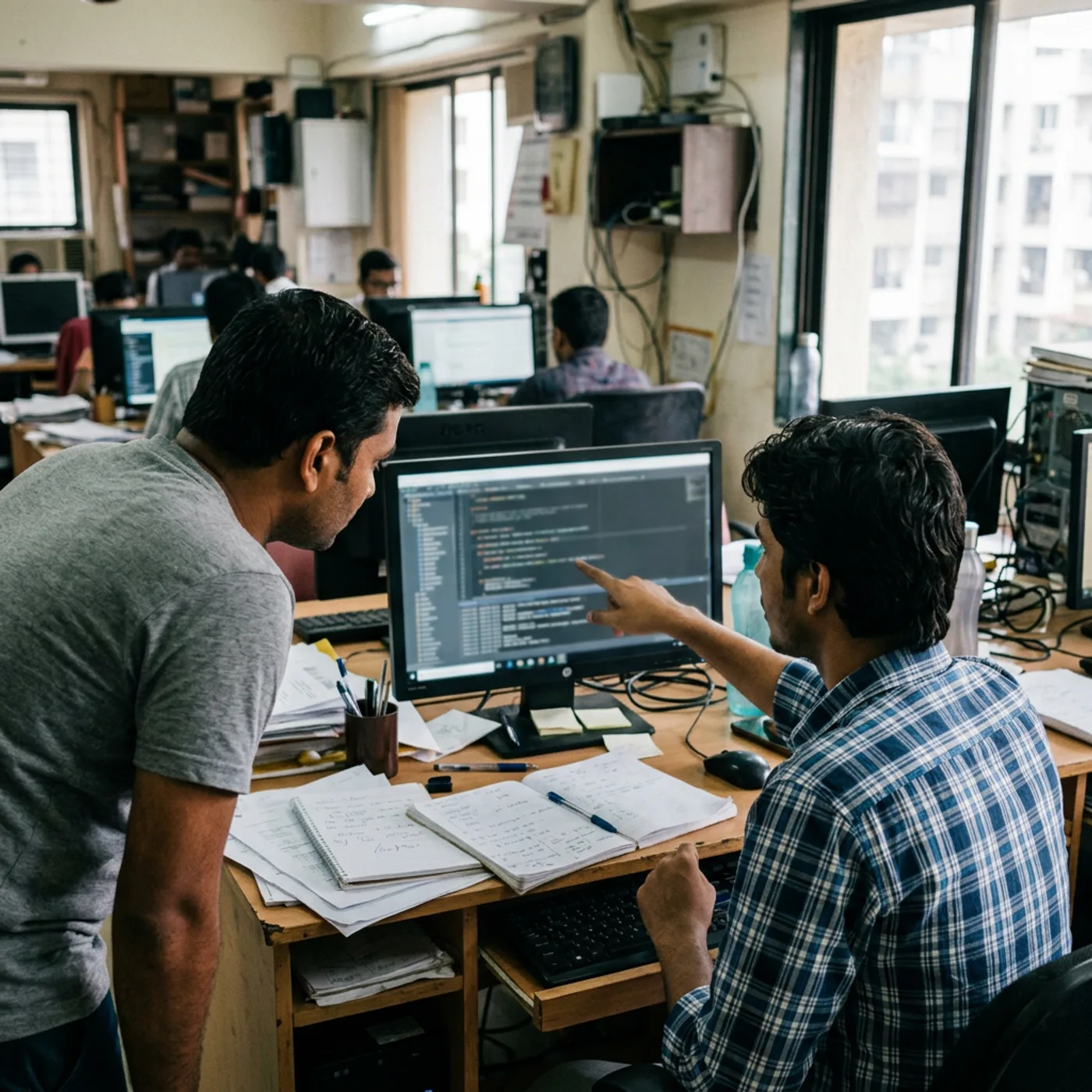
The routine, in one screen
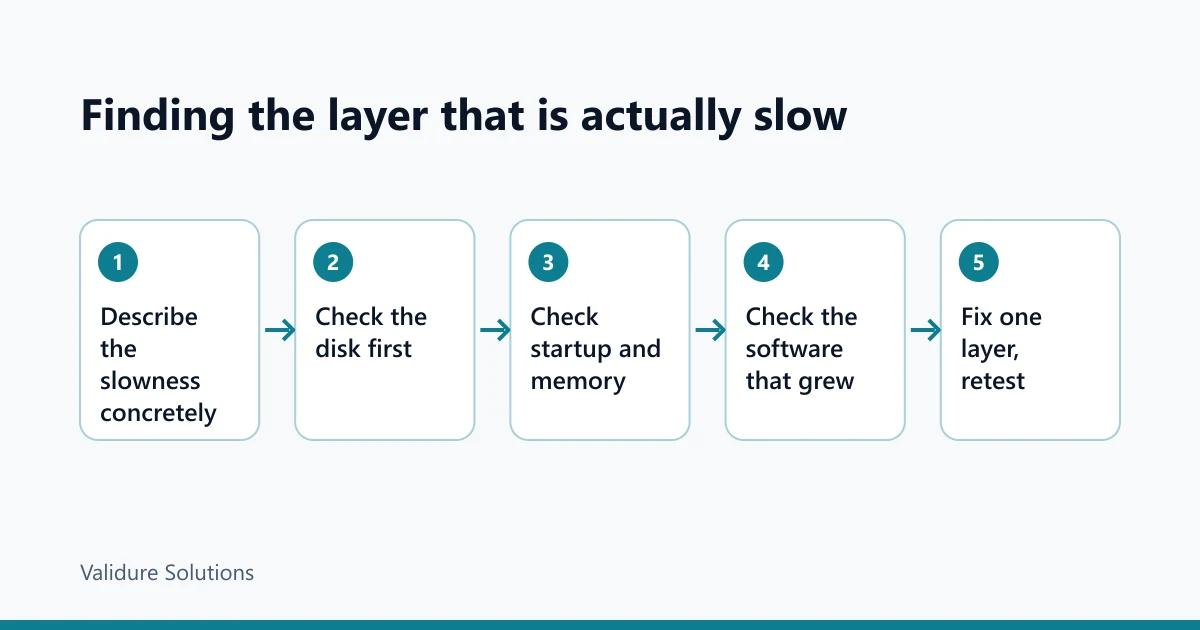
For a small firm, the whole routine is a monthly half hour, not a one-off panic:
- Write down what slow actually is, from the first table.
- Check the disk: what it is doing, whether it is nearly full, which kind it is.
- Check startup and the memory number in the afternoon, when it is bad.
- Check the data behind the thing that is slow, and close out the old year.
- If it points at hardware, buy the one thing, not two.
A machine you have done that on, once a month, does not get to the state where three IT guys tell you to format it. It gets to the state where you know, in a half hour, which of the five it is, and what the fix costs.
Sources and checks
The mechanisms described here are standard computer behaviour, not vendor claims. The numbers in this post are made-up examples, kept small and round on purpose, so you can swap in your own: the drive size, the memory count, the app's data size. Check them against what is actually in the machine before you act on them, because the two upgrades pay for themselves only when they are the layer you actually have. For what a specific machine can take, the manufacturer's page for the model is the source, and it tells you the maximum memory and whether it has room.
Frequently asked questions
My computer is slow but the fan is not spinning. Does that change anything?
It points you away from "the machine is working hard" and toward the data and the drive, because a quiet, slow machine is usually waiting on the disk, not the processor. Start the diagnosis at the disk layer.
Is defragging safe on an SSD?
No, and it is the wrong tool for it. Defragmenting is for mechanical drives that spread a file across the platter. A solid-state drive has no platter to rearrange, and the thing that slows one is being nearly full, not being fragmented. Keep the last tenth free instead.
How do I find out if it is running out of memory without guessing?
Watch the free number while it is slow, not while it is fine. In the afternoon, when the invoicing screen takes forty seconds, read the free memory, and if it is small, memory is your layer. You can also look at which programs have the biggest share, because one app that has quietly grown is a different fix from the machine being undersized.
Why does the same machine get faster after a restart?
Because a restart clears the accumulated layer: the memory that a day of tabs and apps held, and the work that background tasks were finishing. If a restart is the only thing that helps, you are living in the accumulated-software layer, and the check is what is starting, what is running, and what data has grown.
At what point do I just buy a new machine instead of fixing this one?
When the fix for the layer you found is a new drive and more memory and the data is a project, or when the machine is more than about five years old and the parts are not worth the time. For the 3-to-4-year-old machine in the example, one of the two upgrades is almost always the whole fix, and it is cheaper than the new machine it avoids.
Will closing out the old year in my business software really make it faster?
When the local data behind the slow screen is the cause, yes, and it is the fix that also improves the year-end close. It is worth doing even when it is not the speed problem, because a year of un-closed data is the slowest version of the software you already have.
